⭐⭐ Special Topic 1: LASER CUTTING AND ENGRAVING
Learning Objectives:
After this lesson, students can
- use some design software (e.g. Inkscape and RDworks) to design a pattern for laser cutting
- use sofware (e.g. RDworks) to drive a laser cutter
1. SAFETY
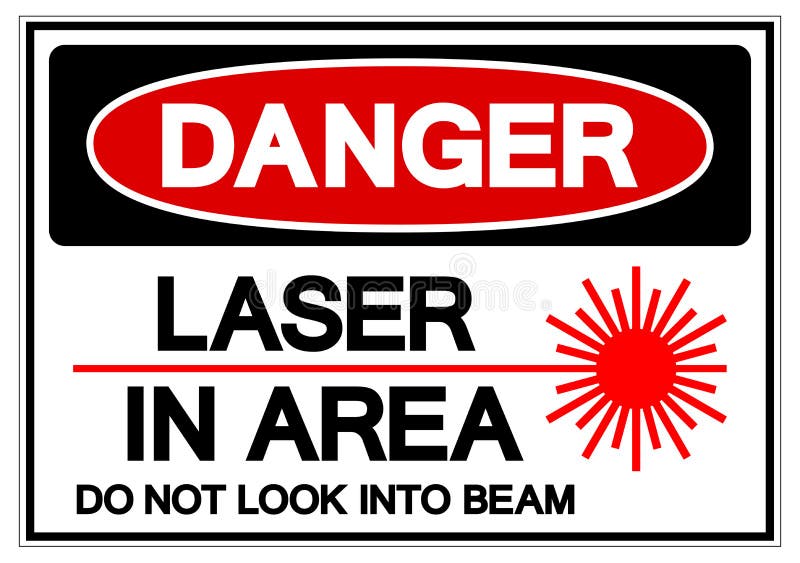
- Do NOT look at the laser directly.
- Ensure good ventilation and good cooling conditions. Turn on the ventilation and cooling accessories for the laser cutter.
- Do NOT breath in the poisonous gas generated.
- Use emergency stop button when necessary.
2. LASER CUTTER
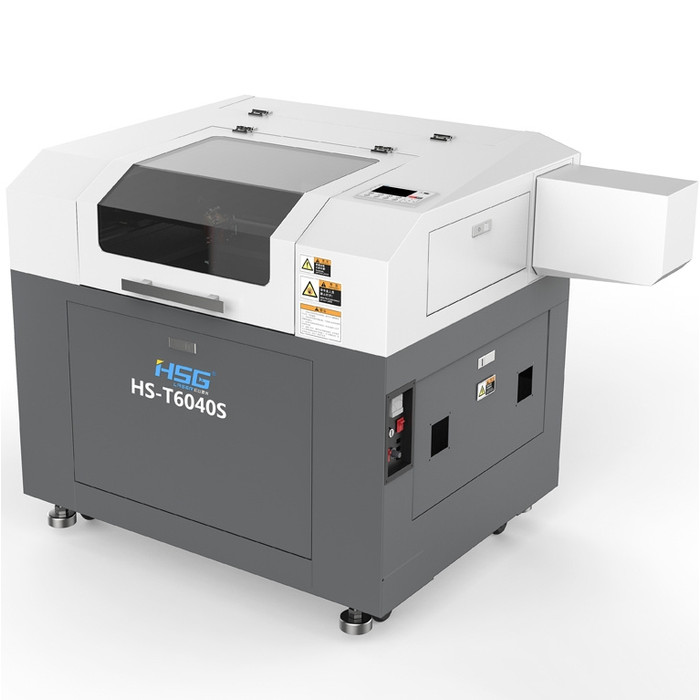
Model: HSG HS-T6040 laser engraver (Controller: Ruida 644XS) (Made in China)
- Size for cutting: 600mm x 400mm
- Need manual focusing
- High power: It can cut acrylic sheets and plywood boards, etc.
3. SOFTWARE TO DRIVE A LASER CUTTER
- Software: RDWorks 8.0
- Free download
- Tutorial Note
- User manual
- Can import DXF version 14, but CANNOT import SVG/PDF file format-->HANG!)
- Connection: by USB
- Laser head origin position: Top right corner
- Starting location of cutting:
- Prefer to select "Current Position" Mode in RDworks
Use"Frame"on the machine panel to check the cutting region- When necessary, adjust the position of the material or use the "arrow keys" on the machine panel to change the current position of the laser head
4. SETTINGS IN RDWORKS FOR DIFFERENT MATERIAL
- Engraving: Top layer of the work in RDworks => Priority = 1
Engraving MUST be done BEFORE cutting.Material Engraving / Cutting Colour (RGB) Laser head speed
(mm/s)Laser power
(%)Repeat Number MDF Engraving BLACK (#000000) 100 (or 200) 10 1 MDF (3 mm) Cutting RED (#FF0000) 100 40 6 5. SOFTWARE TO DRAW DESIGN
- Software: Inkscape
- Free download
- Tutorial Videos (in the playlist of video):
Inkscape tutorial: Tracing bitmaps
How do you export from Inkscape to RDWorks for CUTTING
-
It's easiest to design and work with mm. To do this, go to File->Document Properties in Inkscape and set the default units to mm.
-
Next, You need to make sure that all of your design is a Path. To do this, select everything and go to Path->Object to Path.
-
Now you are ready to export. Go to File->Save As. Give your file a name and select "Desktop Cutting Plotter (AutoCAD DXF R14) (*.dxf)" under "Save as type." Click Save.
You will then be presented with a dialog with some options.
- Uncheck "use ROBO-Master type of spline output"
- Uncheck "use LWPOLYLINE type of line output."
- For "Base unit" select "mm" if you set up your document for millimeters. If you used a different unit of measurement, select that here.
- Leave "Character Encoding" on the default, which should be "Latin 1."
- Also leave "Layer export selection" set to "Visible only" which means the export will contain only what you currently see in Inkscape, so hidden layers won't be exported.
- Leave "Layer match name" blank.
- Next, click OK.

Inkscape will then save the dxf file.
You can bring this into RDWorks by going to File->Import and opening the dxf file that you just saved.
5. EXAMPLES
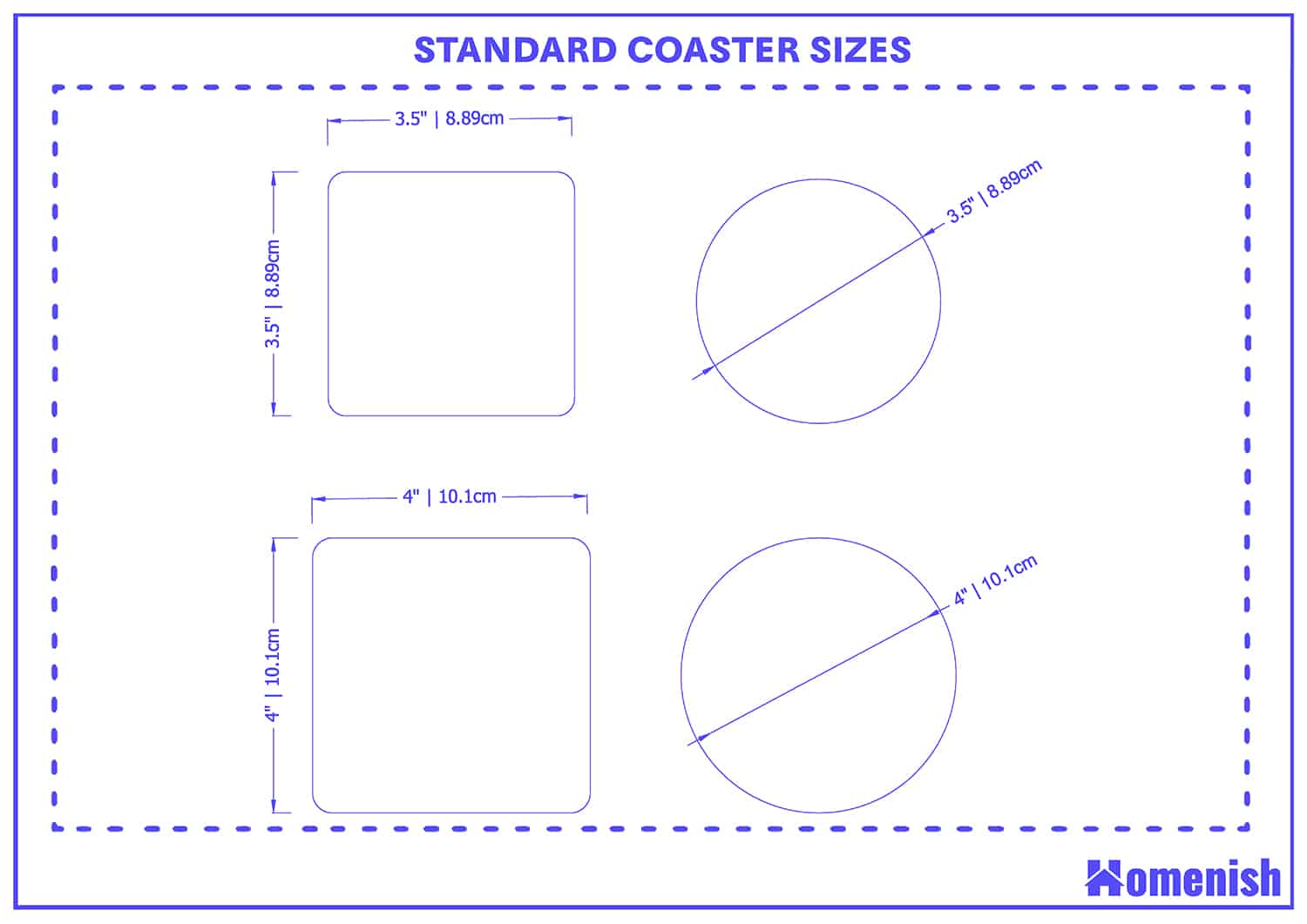
1Coaster (杯墊)
Reference:
- Laser cut coasters
- Laser Cut Vector Circle Coaster Free DXF Designs
- Free Vector Laser Cut Wood Coasters

Download the files (in a zipped file)- .SVG file (Inkscape file)
- .DXF file (exported from Inkscape)
- .RLD file (RDworks file)
2Example 2
3Example 3: By Inkscape Extension - Lasercut Jigsaw
4Example

Inkscape SVG File: Rounded Square (50x50mm).svg
Inkscape SVG File: Rounded Square (50x50mm)_WIN.svg
AutoDesk DXF File: Rounded Square (50x50mm)_WIN.dxf
RDworks RLD File: Rounded Square (50x50mm)_WIN.rld
